FreshRSS

🔒
❌ About FreshRSS
There are new articles available, click to refresh the page.
Before yesterdayFedi.Tips

How to avoid scammers on Mastodon and the Fediverse

3 March 2026 at 11:11

Like any other social network, you may run into scammers on Mastodon and the wider Fediverse. Here’s how to spot them and what to do if you’re unsure.

Scam: “We need you to verify your account”

Someone posing as a Mastodon server admin gives some made-up reason why they need you to verify your account, perhaps claiming you’ve done something suspicious. They then provide you a link you click on which asks for your credit card details or personal details. Do not click this link or give them any information, it is a scam.

No genuine admin will ever demand you verify your account. There is a verification system on Mastodon but it’s entirely optional and it does not involve clicking on strange links or giving out details.

Scam: “We want to pay you for posts / form a partnership / offer you a reward”

This scam has someone posing as a Mastodon admin offering cash rewards for making popular posts as part of some kind of “partnership”, perhaps telling you they’ve picked you specifically as a popular account. This is fake, do not reply or engage with such a post.

No genuine admin will ever do this. There is no reward scheme on Mastodon, no one is paid for their posts. The scammers just want to steal your bank details.

Scam: “Please change your account’s email address temporarily”

This is a more subtle scam, where someone posing as a Mastodon admin claims there’s been a database error and they need you to temporarily change your account’s email address to one they give. Do not do this! If you change your email to the address they give, they will be able to take over your account by using the “forgot my password” link on the login page.

No genuine admin will ever ask you to do this. There is never any legitimate reason for such a request.

What do I do if I see a scam post?

  1. Do not click the link, do not reply to the scam post
  2. Click on ⋯ on the scam post
  3. Click “Report”
  4. Follow the on-screen instructions for reporting (If you see an option to forward the report, make sure you’ve switched this on as it will greatly speed up the process of deleting the scammer’s account)

What if I’m not sure if it’s a scam?

If you’re ever unsure about a request from an admin, contact your server’s admin directly using their official contact details. By contacting your admin directly, you can check with them if a message is genuine and avoid any fake admins.

Should I be embarassed if I fell for a scam? Should I make fun of people who fall for scams?

No! Do not be embarassed if you fall for a scam, and do not make fun of scam victims.

Everyone can fall for scams, everyone has something in life they’re not famliar with, everyone has off-days. If you fall for a scam, it just means you’re a human being and you should not feel ashamed. If you feel up to it, tell people what happened and ask for support in stopping the scammers.

It is really, really important not to make fun of people who fall for scams, partly because it’s blaming the victim, but also because the scammers actively rely on victims being made fun of. Scammers WANT their victims to feel too embarassed to warn others, so that the scammers can carry on trying to get even more victims.

The best way to fight scammers is to be supportive and friendly to victims, and encourage them to report what has happened without feeling ashamed. This solidarity makes life more difficult for the scammers, because their victims will be more likely to report the scams.

What if the scam is coming from an account I trust?

As noted in the “please change your email” scam above, scammers may try to take over trustworthy accounts and use these to spread their scams. This is why if you’re in any doubt you should ask your server admin directly instead of responding to suspicious posts.

I am a server admin. How do I stop scammers signing up on my server?

All scammer accounts on Mastodon so far have been on servers with instant sign-ups.

Set your server to only allow sign-ups with approval, so you can screen accounts. This alone seems to put the scammers off signing up on your server:

  1. On your server website go to Preferences
  2. Click Administration
  3. Click Server Settings
  4. Click the Registrations tab at the top
  5. Set “Who can sign up” to “Approval required”
  6. Click “Save Changes”

↩ Back to the front page

How to use emojis on Mastodon

15 February 2026 at 22:00

You can add emojis to your posts in Mastodon, but the way you add them depends on whether you’re using the website interface or an app.

Using emojis on the Mastodon website interface

  1. Start writing your post
  2. Click the 🙂 picker icon
  3. Find the emoji you want either by searching for keywords or by scrolling through the available emojis
  4. Click the emoji and it will appear in your post (you can cut and paste it if it’s in the wrong place)

Using emojis on Mastodon apps

  1. Start writing your post
  2. If you want to use a normal emoji use the picker on your phone or tablet’s keyboard
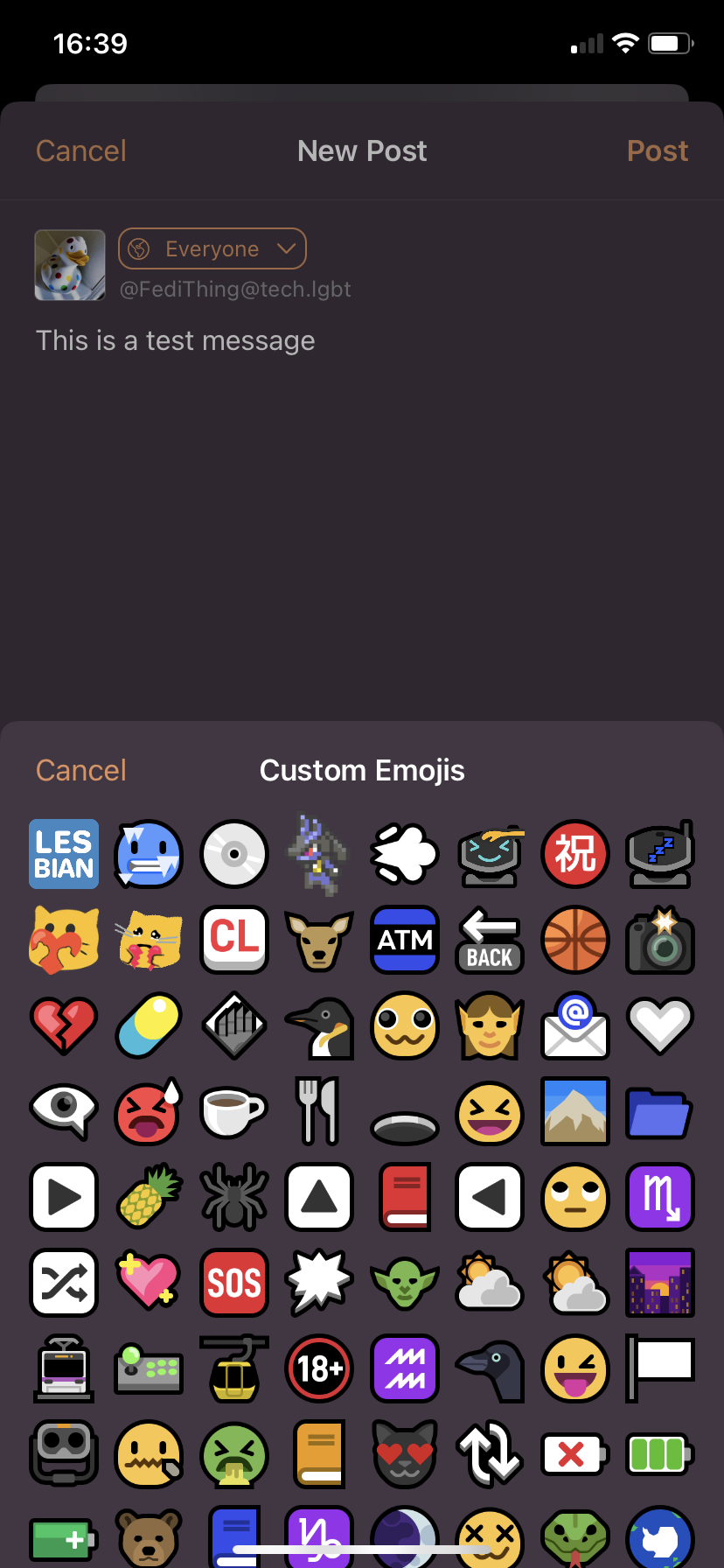
  3. If you want to use a custom emoji use the picker within the Mastodon app, usually indicated by a 🙂 icon below the box where you write your post

They’re in two different places on apps because the on-screen keyboards on mobile devices don’t allow custom emoji to be displayed, so they have to be in a separate section in the app itself.

Typing emojis with a keyboard

If you’re using the web interface through a keyboard, you can also type emoji directly without using the picker.

What are custom emoji?

Custom emoji are additional emoji added by your server admin. People on other servers can see them, but only people on your server can use them. More info in the custom emoji guide.

How to set skin tone in emojis on the Mastodon web interface

Mastodon’s web interface includes an emoji picker, and you can set it to default to a particular skin tone:

  1. Click the emoji picker icon 🙂
  2. Click the ✊ icon next to the search box in the picker
  3. Choose the skin tone

The picker should now default to using that tone on emoji that support it.

I tried using the emoji typing shortcut but it defaulted to yellow. How do I get it to use the skin tone I chose?

There’s a known bug in the typing shortcut for emoji, where it ignores skin tone settings and just uses the default yellow non-tone emoji set. If you’re comfortable using Microsoft Github you can vote for this to be fixed by giving a thumbs up in the issue ⧉.

↩ Back to the front page

How to discover hashtags to follow on Mastodon and the wider Fediverse

28 January 2026 at 13:27

One of the best features on Mastodon and other Fedi platforms is that you can follow hashtags. This makes posts using that hashtag appear in your main timeline even if you aren’t following the person who made it, helping you discover interesting and relevant stuff.

Most tags are obvious and you don’t need help to discover them

You can find out how to follow hashtags in the guide, and most hashtags people use are just straightforward topic names such as #Gardening or #Cooking or #BoardGames etc. Basically, for any topic just stick # at the beginning of the word or phrase and capitalise the first letters of each word.

Some widely-used tags are non-obvious, so here is a list to help you discover them

However, there are also widely-used hashtags which you may not be aware of as they use unusual portmanteau words or phrases. Here is an attempt to list some of them:

#3GoodThingsPeople listing three good things that happened to them that day, or which they appreciate that day.
#A11yAbbreviation of accessibility
#AcademicChatterAcademics discussing academia
#ActuallyAutistic & #AutisticPosterDiscussion by and for Autistic people
#AfroIndigenousDiscussion by and for Afro-Indigenous or Indigenous-Black peoples in North America
#ArtForSaleArt for sale from independent artists
#AskFediGeneral queries on any topic, asking for advice or help
#AsstodonDonkeys
#AstrodonSpace and astronomy topics
#BandcampFridayIndependent musicians on days when musicians selling via Bandcamp get to keep all the money from their sales
#BikeTooterCycling and bicycles
#BIPOCNorth American acronym “Black Indigenous People of Colour”
#BlackMastodon & #BlackFediDiscussion by and for Black people
#BleptemberAnimals sticking their tongues out in September
#BloomscrollingFlowers
#BookstodonBooks
#BreadpostingBaking and breadmaking
#BugstodonInsects and arthropods
#CarryShitOlympicsUsing cargo bikes to carry more stuff than one might expect
#CatstodonCats
#CaturdayCats on Saturdays
#ClamFactsClam trivia
#DefaidodonSheep
#DogsOfMastodonDogs
#DOScemberMS-DOS computers, games and software during December
#FairTradeMusicFridayIndependent musicians using alternatives to Bandcamp including Faircamp and Mirlo
#FediAdminRunning a Fediverse server
#FediArtPosting art that you’ve made
#FediBlockRecommending blocks of servers doing bad things, usually blocks by admins
#FediBlockMetaDiscussing the general topic of blocking on the Fediverse without actually suggesting blocks
#FediDogsDogs
#FediGiftShopArt for sale from independent artists
#FediTipsTips on using Mastodon and the wider Fediverse
#FensterFreitagViews from windows or views of windows on Fridays
#FernFridayFerns on Fridays
#FlorespondenceFlowers
#FollowFridayRecommending accounts to follow on Fridays
#FootpathFridayHiking and walking trails on Fridays
#FossilFridayFossils on Fridays
#FridayThrillerClubWatching a thriller together on Fridays
#FungiFridayFungi on Fridays
#GetFediHired & #FediHirePeople looking for work, people offering work
#HashtagGamesHumorous posts based on wordplay challenges
#HawkPantsHawks that look like they’re wearing trousers
#HistodonsHistory
#IndigenousCreativesArt and crafts by Indigenous people
#InktoberDrawing with ink during October
#InsectSaturdayInsects on Saturdays
#IntroductionBrief introduction post about yourself
#JMusicFridayJapanese music on Fridays, sometimes with a specific theme each week
#JoinInEveryday life of people looking for conversation, especially at Christmas
#JukeboxFridayNightMusic on Fridays, often with a specific theme each week
#KPopMondayK-Pop music on Mondays
#LandBackReturn of land to Indigenous peoples
#LazySundayRelaxing stuff on Sundays
#LichenSubscribeLichens
#MacroMondayMacro photography on Mondays
#MagicInTheMundaneBeauty in everyday objects or situations
#MakanApaTodaySouth-East Asian food
#MarchintoshOld Macintosh computers during March
#MarshMadnessPhotos of marshes
#MastoAdminRunning a Mastodon server
#MastoArtPosting art that you’ve made
#Mastodaoine & #MastodonIEIreland and Irish people
#MeerMittwochSea views on Wednesdays
#MMIP & #MMIW & #MMIWG2SDiscussions of missing or murdered Indigenous people, acronyms standing for “Missing Murdered Indigenous People”, “Missing Murdered Indigenous Women”, “Missing Murdered Indigenous Women/Girls/Two Spirits”
#MondayActionMovieWatching an action movie together on Mondays
#MondayMotivationHelping people keep going on Mondays
#MonDogDogs on Mondays
#MonochromeMondayBlack and white photography on Mondays
#MonsterdonWatching monster movies together
#MosaicMondayPhotos of mosaics on Mondays
#MosstodonMoss
#MountainMondayPhotos of mountains on Mondays
#MovemberGrowing moustaches during November to raise awareness of men’s health issues
#MovieClubWatching films together, new film every two weeks
#MushtodonMushrooms and fungi
#MusicWomenWednesdayMusical women on Wednesdays
#NowPlaying & #NPMusic
#NowReadingBooks
#PhDLife & #PhDoneDiscussion by PhD students and recent ex-students
#SaturdaySceneryLandscape photography on Saturdays
#SepTandyTandy computers during September
#ShrimpSundayShrimps and prawns on Sundays
#SilentSundayCalm photos on Sundays
#SolarpunkSundaySolarpunk topics on Sundays
#SporespondenceMushrooms and fungi
#SportsballSport
#StandingStoneSundayPhotos and drawings of ancient megaliths on Sundays
#TeXLaTeXDiscussion of LaTeX typesetting system, hashtag used to avoid confusion with posts about Latex clothing
#TextureTuesdayPhotography emphasising texture on Tuesdays
#ThickTrunkTuesdayTrees on Tuesdays
#ThrowbackThursdayPhotos and/or memories from the past on Thursdays
#ThursdayFiveListLists of five songs on Thursdays, with a specific theme each week
#TilingTuesdayTiling in art, crafts and maths on Tuesdays
#TimelineCleanseAnything that brings pure innocent joy
#TinyBalancingSheepPhotos of sheep where they look like they’re balancing on fences and posts
#TongueOutTuesdayAnimals sticking their tongues out on Tuesdays
#TOTPDiscussion of UK music programme “Top of the Pops”, also used by totally unrelated discussions of computer security feature “Time-based One Time Password”
#TrainTrackTuesdayPhotographs of railway tracks on Tuesdays
#TransJoyPositive experiences by Trans people
#TuneTuesdaySongs on Tuesdays, with a specific theme each week
#TurtleIslandIndigenous term for the world or North America, Indigenous topics often discussed with this tag
#TwoSpirit & #2Spirit & #2SNorth American Indigenous term for third gender or gender variant people
#VendrediLectureFrench-language books on Fridays
#VintageAdsRetro advertisements
#WaterfallWednesdayWaterfalls on Wednesdays
#WeevilWednesdayWeevils on Wednesdays
#WhiskersWednesdayCats on Wednesdays
#WildlifeWednesdayWildlife photography on Wednesdays
#WrensdayWrens on Wednesdays

If you see irrelevant, offensive or spam posts on these or any other hashtags, you can report it by clicking ⋯ on the post and then Report.

↩ Back to the front page

How to fill your PeerTube server with federated videos

12 November 2025 at 17:31

If you run your own PeerTube server, when you first load it up it’s totally empty. You can upload your own videos of course, and if you’re running a public server your members can upload videos too. However, it may still seem a bit bare compared to centralised video sites like YouTube etc.

That’s where federation comes in! 🥳

If you run your own PeerTube server, as well as uploading your own videos and your members’ videos, you can federate videos from other servers by following them using your server’s federation tools. You can curate who you federate with to produce a unique video catalogue on your site, sort of like creating a mixtape ⧉.

If you want you can allow other servers to follow your server as well, but this is optional and you don’t have to allow it if you don’t want to. See the section marked “How do I control who federates my server’s videos?” for more details.

Why would I want to federate videos on PeerTube?

When you use your server’s federation tools, the videos from the servers or accounts being followed will appear on your server’s website too and be searchable from your site. The videos won’t actually be hosted on your server so they won’t take up any of your server space, federation just means that people will be able to watch, browse and search videos from other servers on your server’s website.

Federation is a way of helping people discover videos on a wider range of servers, and for this reason you may want to federate your server’s videos to other servers too. By the way, federation only happens with the permission of the other servers and/or video creators. The other servers and/or creators have to set their PeerTube to allow it, and they can optionally do it with an approval system to check who is requesting federation.

Do federated videos take up space or bandwidth on my server?

No, the federated videos are hosted on the server where they were uploaded. Federating doesn’t take up any of your server’s storage space or bandwidth.

How to federate another PeerTube server’s videos to yours

There are two approaches to federating videos from other PeerTube servers:

  • Following an entire other server, which is quickest and displays the most videos, but it may include accounts you would rather not federate.
  • Following specific accounts or channels, which is slowest and most labour intensive, but it means you’re customising your server’s federated feed to be exactly what you want it to be.

You can federate a mixture of servers and specific accounts in whatever combination you want. To actually do the federation:

  1. Log onto your PeerTube server’s website with your admin account.
  2. Click on Settings (you may need to click ☰ and then Settings if you’re using a phone)
  3. Click the Federation tab
  4. Click Follow
  5. In the new window, type or paste the domain names of the servers you want to federate to your server, and/or the accounts and/or the channels you want to federate to your server. You can type several as long as there’s a new line for each one.
  6. Click the Follow button of the window

After you’ve done this, follow requests will be sent to the servers and/or accounts and/or channels, and when the federation has been accepted you’ll see an Accepted label next to their names on the federation list.

If you change your mind, you can remove a server or account or channel by clicking Delete next to its name.

If you’ve forgotten who you federated with, you can browse the list or search it using the Filter box above it.

Which servers, accounts and channels should I federate with?

If you want suggestions for specific creators, there are some good PeerTube accounts and channels listed over on Fedi.Directory ⧉.

If you want suggestions for of nice servers to federate, here are some good ones:

(DISCLAIMER: I have not watched every video from every channel on these servers, there are far too many. I’ve tried my best but cannot guarantee the nature of their content. Please view a server yourself before you decide to federate with it.)

  • all.electric.kitchen – Experimental electronic music videos
  • archive.reclaim.tv – American community television station promoting FOSS in education
  • communitymedia.video – General server covering many topics, offering low cost video hosting to community channels
  • conf.tube – Technology conference video archive
  • dudelike.wtf – Personal server for a chilled-out dude posting on life, cooking, meditation etc.
  • fedi.video – Creative commons and public domain feature films, documentaries and curiosities, also silent films with modern soundtracks added, run by the creator of fedi.tips 🙂
  • flipboard.video – Official server for Flipboard, the news aggregation and curation platform
  • makertube.net – Server for creative people who create, build, design or fix things
  • media.fsfe.org – Official server of the Free Software Foundation Europe (NOTE: not affiliated in any way with the Free Software Foundation in the USA)
  • media.privacyinternational.org – Official server of Privacy International, an NGO campaigning for privacy as a human right
  • peer.tube – General server covering many topics, mainly in French, run by the creators of PeerTube’s server software
  • peertube.art3mis.de – Educational and video game videos, mainly in German and English
  • peertube.dair-institute.org – Institute set up by experts that are sceptical of the AI industry
  • peertube.kaleidos.net – Official server of Penpot, FOSS UI prototyping software
  • peertube.openrightsgroup.org – Official server of Open Rights Group, a UK NGO campaigning for civil liberties online
  • peertube.tv – General server covering many topics, run by the creators of the mstdn.social Mastodon server
  • peertube-us.howlround.com – Occasional livestreams from American theatre project
  • puppet.zone – Artist’s server creating lovely muppets-style puppets
  • solarsystem.video – Space and planetary science videos, including short documentaries, long-form academic lectures etc, run by the Planetary Research Cooperative
  • spectra.video – General server covering many topics, run by creator of WeDistribute social network news site
  • tilvids.com – Educational and entertainment videos, informative in some way
  • tinkerbetter.tube – Official server of the popular Veronica Explains series about FOSS, Linux, retro technology etc.
  • toobnix.org – General server covering many topics, run by the SDF Public Access UNIX system
  • trentontube.trentonhoshiko.com – Film-making, cinematography and photography videos by low-budget film-maker
  • tube.fediverse.games – Gaming video server, covering all forms of gaming
  • tube.kockatoo.org – KDE software development community videos
  • tube.tchncs.de – General server covering many topics, mainly in English and German
  • tubefree.org – General server covering many topics, run by the non-profit BT Free
  • tv.dilstories.com – Film-making and short films, run by award-winning Ugandan director
  • urbanists.video – City planning, public transport and cycling enthusiasts
  • v.basspistol.org – Music videos from independent and underground artists of many genres
  • video.blender.org – Official server of Blender, the free open source 3D animation suite
  • video.canadiancivil.com – City planning, public transport and cycling videos, covers world but often features Canada
  • video.fedihost.co – Tutorials, tips and podcasts about hosting your own Fediverse servers including Mastodon, Peertube, GoToSocial etc.
  • video.firesidefedi.live – Interviews with familiar faces from around the Fediverse, also gaming and programming videos by the server’s maintainer
  • video.franzgraf.de – Hiking and cycling videos, in English but from the mountains of Germany
  • video.gamerstavern.online – Video game videos from a friendly non-toxic gaming community
  • video.hardlimit.com – Video game and technology videos in English and Spanish
  • video.infosec.exchange – General server covering many topics, run by the admins of the infosec.exchange Mastodon server
  • video.katehildenbrand.com – Gardener and marine biologist posting on nature, gardening, biology, food etc.
  • video.stevesworld.co – Music videos by singer-songwriter
  • video.thepolarbear.co.uk – Personal server for a fun livestreamer and his friends, often features pop culture and technology
  • videos.elenarossini.com – Documentaries by Italian film-maker and Fediverse fan
  • vod.newellijay.tv – Community television station based in the USA, hosting all kinds of programmes including music, theatre, sport, archive public domain films etc.

If you think I’m missing something, or if you think I shouldn’t be listing one of these, please contact me.

Can I find any other lists of servers or accounts/channels to follow?

Yes, if you go to any PeerTube server’s website you can view its network:

  1. Go to a PeerTube server’s website
  2. Click More Info (or ☰ and More Info if you’re on a phone)
  3. Click the Network tab
  4. The Subscriptions section shows the servers and accounts/channels that the server is following, the Followers section shows other servers that are following that server.

You can use these network pages of other servers to get suggestions for which other servers and accounts/channels to follow. The network page will be different on each server.

Which videos from a server get federated to my server? Is it just the server’s own videos, or all the videos that it federates with too?

It’s just the server’s own videos.

For example if you follow fedi.video the only videos it would federate to your server would be those hosted on fedi.video, it would not include videos that are visible on fedi.video but hosted on other servers.

How do I see just the videos on a particular server, and hide the videos it has federated from other servers?

To just see a server’s own videos and hide all the videos it has federated from elsewhere:

  1. Go to the server’s website
  2. Click the Browse Videos tab
  3. Click the More Filters link just below the “Videos on…” heading
  4. In the Displayed Videos dropdown menu, select “Only videos from this platform”

These are the videos that would be federated to your server if you follow them.

Which videos get federated?

By default all of the videos get federated. PeerTube uses “backfilling” so that when you federate with a particular server, account or channel it checks to see all the videos it has ever uploaded.

How do I screen out sensitive or “NSFW” videos?

Some servers may contain sensitive content such as adult content, or distressing images such as from a war etc. Most servers which allow such content require the uploader to mark it as sensitive, which means other servers can easily take appropriate action about this content.

If you want to hide or blur sensitive videos viewed via your server, do the following:

  1. Log onto your PeerTube server with your admin account
  2. Click on Settings (you may need to click ☰ and then Settings if you’re using a phone)
  3. Click the Information tab
  4. Scroll down to the section marked Moderation & NSFW
  5. From the dropdown menu marked Policy on videos containing sensitive content, select “Hide” to hide them completely or “Blur” to show them but with a blurred thumbnail
  6. Scroll down to the bottom of the page and click the Update Configuration button

This applies to all sensitive videos, including from your server and from other servers you federate with.

If you encounter a sensitive video that has not been marked as sensitive, you might want to stop following the server it came from and contact the owner of the server to let them know about it.

How do I control who federates my server’s videos? How can I switch federation on or off? How can I screen who federates my server?

Here’s how to adjust who can federate your server’s videos:

  1. Log onto your PeerTube server with your admin account
  2. Click on Settings (you may need to click ☰ and then Settings if you’re using a phone)
  3. Click the Basic tab
  4. Scroll down to the section marked Federation
  5. If you want other servers to be able to federate your server’s videos, tick the box marked “Other instances can follow yours”.
  6. If you are allowing federation but you want to manually approve each server that federates yours, tick the box marked “Manually approve new instance followers”.
  7. Scroll down to the bottom of the page and click the Update Configuration button

If you’ve set your server to allow federation but with manual approval, you will get a notification to your admin account that there is a server wanting to federate your server’s videos. You can click on the notification or go to Settings > Federation > Followers to approve or deny the federation request.

I tried to federate an account to my server but not all of its videos are showing up. What’s going wrong?

In theory if you federate a PeerTube account to your server it should show all the videos from all of the account’s channels. However in practice it sometimes doesn’t do this reliably. This can be solved by also following all the channels that belong to that account, which makes all the account’s videos show up properly.

I just want to show one channel from an account but not the whole account, can I do this?

Yes. If you just follow the particular channel you want and don’t follow the overall account, only that channel’s videos will show up on your server.

If I federate an account or a server, does it show older videos uploaded a while ago?

Yes, it shows all the videos ever uploaded by that account or server. PeerTube uses “backfilling” to show everything a PeerTube account has ever posted.

(Obviously though, sensitive videos would be hidden if you have set your server to do so.)

↩ Back to the front page

How to promote your PeerTube videos, account and channels

9 November 2025 at 20:24

Do you publish videos on PeerTube? Would you like more people to follow you on PeerTube and watch your PeerTube videos?

This is a guide to how to make your PeerTube account, channels and videos more discoverable. You don’t have to do everything in this guide, but the more you do here the more discoverable your videos become.

Read tips on how to publish on PeerTube

If you want more info on how to actually publish videos, see the step-by-step guide to publishing on PeerTube. If you’re a serious video maker you might want to read the section on starting your own server, it’s a lot cheaper and easier than people realise (you don’t need to be rich or a techy person).

Check that your videos are searchable in Sepia Search

PeerTube has an official search engine at SepiaSearch.org ⧉. Check that your published videos are searchable there by searching.

If your videos aren’t searchable, give it some time for the search index to update. If it’s already been a while since your videos were published, add your server’s websites address on the official instances list ⧉.

Suggest your PeerTube account and channels to Fedi.Video

The author of this guide also runs a site at Fedi.Video ⧉ which features a human-curated selection of good PeerTube accounts. If you run a nice PeerTube account, get in touch with the Mastodon account @fedivideo@social.growyourown.services ⧉ to suggest your account be listed.

(For moderation reasons, Fedi.Video generally only includes English-language videos or videos with English-language subtitles.)

Add descriptions to your PeerTube account and channels

It’s really quick, easy and important to describe your PeerTube account and channels. These descriptions are crucial because people use them to decide whether or not to follow you or watch your videos. These descriptions are also used by other Fediverse platforms such as Mastodon for showing your profile and displaying it in search results.

To add an account description:

  1. Log into PeerTube on your server’s website
  2. Go to your profile page
  3. Click Manage Account
  4. Write your account description in the Description box
  5. Click the Save Profile button

To add a channel description:

  1. Log into PeerTube on your server’s website
  2. Click Channels
  3. On the channel you want to add a description for, click Update
  4. Write your channel description in the Description box
  5. Click the Update Channel button

Add descriptions to all your channels if you can.

Add tags to your videos

If you want to make them discoverable, it’s really important to add tags to your videos. These make people a lot more likely to discover them as a lot of people on the Fediverse follow hashtags, which means your video may automatically appear in the main timelines of people following that tag. Many people also search for hashtags, so including tags on a video it will be in the search results for those tags.

It’s best to add tags to a video before you publish it, you can find out how to add tags in section 7 of the PeerTube publishing guide.

Upload your videos gradually, don’t upload all your videos at once

A lot of people with an back catalogue of existing videos are tempted to just upload all of them at once onto PeerTube, then wait for people to discover them. This generally doesn’t work due to the way Fediverse servers discover and display content.

Most of the Fediverse deliberately doesn’t use algorithms. Instead, people see all the posts from all the accounts they follow displayed chronologically in their main feed. If you upload 500 videos all at once, most people following you will see 500 posts swamping their timeline all at once, and then they won’t see anything else from you until you upload new stuff.

Also, due to the way Fediverse servers “notice” content, uploading after you have gained followers will make your videos a lot more visible to a lot more people on a lot more servers. If you upload before you have any followers at all, the uploaded videos may not be visible at all to most servers.

Most of your potential followers and viewers are on Mastodon!

PeerTube is part of a much larger social network called the Fediverse. Most of your potential followers and viewers aren’t on PeerTube itself but on other Fediverse platforms such as Mastodon etc. Because the Fediverse uses common open technical standards, people on Mastodon etc can follow and interact with you on PeerTube, and it is from these other Fediverse platforms where most of your followers and viewers will come from.

For this reason, you might want to focus promoting your PeerTube on other Fediverse platforms such as Mastodon etc.

Create an account on Mastodon etc. to promote your PeerTube

You might want to create an account on Mastodon to complement your PeerTube. The most successful PeerTube accounts all have Mastodon etc accounts too, which allows them to join in with discussion threads rather than just publishing videos. For example a PeerTube account about gardening might set up a Mastodon account so they can join in with general discussions about gardening.

Share your PeerTube address with people on the Fediverse

You can encourage people on the Fediverse to follow your PeerTube account by telling them your PeerTube fediverse address, which will look something like this:

@(username)@(server)

All accounts on the Fediverse have a unique address in this form, which allows anyone on any Fedi platform to search for an account’s profile. The user can then just click on the profile and click its “Follow” button to follow it, even if they’re on a non-PeerTube platform such as Mastodon etc.

If you’re using Mastodon or another similar Fediverse platform, you can paste a Fediverse address into a post and it will appear as a clickable link that people can click on to see the account’s profile.

When viewed from Mastodon, a PeerTube account profile will contain the PeerTube profile image and text description and clicking follow will follow the PeerTube account itself. Videos published by that PeerTube account after the moment of following will start appearing in the follower’s Mastodon timeline.

You can usually find a PeerTube account’s or channel’s Fediverse address on PeerTube by clicking the ⧉ button next to a username on your PeerTube server’s website, but you may need to add @ to the start so that they work fully on Mastodon etc. (For some reason PeerTube seems to leave off the leading @ on this copy button.)

Use quality control

If you upload lots of videos regardless of how useful or interesting they may be to others, it will make it much harder for people to notice your good videos.

People will be a lot more likely to follow your PeerTube if you only upload videos that you know people will enjoy watching. The PeerTube accounts with the largest follower numbers are ones that only upload high quality edited videos, or at least video clips they have chosen carefully.

Nicely edited videos are wonderful of course, but you don’t have to be an expert video editor to exert quality control. For example some popular channels just show unedited clips of wildlife, but they only show clips they consider interesting or entertaining.

Engage with your viewers

If someone has commented on your video you will see a notification about this when you’re logged into PeerTube. Reply to their comment, engage with them, answer their questions or thank them for their feedback. People will be a lot more likely to follow you and watch your videos if they know there is a friendly human being behind them.

Think about time zones when publishing videos

Most people on the Fediverse browse non-algorithmic chronlogical timelines, so they see every post from every account they follow at the moment it is published.

If you have a video aimed at people in a particular time zone, publish it when people from that time zone are most likely to be browsing their timelines. If you’re trying to reach multiple timezones, try to find a sweet spot when most people are awake in those time zones (for example the evening in Europe is the morning in the Americas).

Use nice thumbnails on your videos

By default videos will just show a still from the video as their thumbnail. However, it’s usually a good idea to upload a custom thumbnail so that people get a good idea of what your video is about. To add a thumbnail:

  1. Log onto your PeerTube server’s website
  2. Click Videos
  3. On the video you want to add a thumbnail to, click Update
  4. Click the Advanced Settings tab
  5. In the Video Thumbnail section click Select From Your Device and select the thumbnail image file
  6. When the thumbnail has finished uploading, click the Update button at the bottom of the screen

You can monetise PeerTube by having sponsors and patrons

There is no advertising system on PeerTube so there are no adverts inserted into videos. However, PeerTube accounts can receive an income through sponsors and patrons, and you may see sponsors’ messages and/or there may be a list of patrons being thanked.

PeerTube has an option to upload videos to unlisted URLs and/or password-protected URLs. These can be used to give patrons early access to your videos.

You can also include a “support” link on your videos which people can click to find out how to donate to you. To add a support link in PeerTube:

  1. Log onto your PeerTube server’s website
  2. Click Channels
  3. On the channel you want to add a support link for, click Update Channel
  4. In the Support box add some explanatory text and links to your donation platforms (Ko-fi, Liberapay, Patreon etc)
  5. Click Update Channel

If you’re uploading VODs of livestreams, either edit out the leadup or have a countdown timer

It can be very frustrating for people watching VODs (videos on demand) of livestreams to see it begin with a “starting soon” placeholder that goes on for many minutes without any clue as to when it actually starts. A lot of people will simply bail out and won’t even skip ahead.

People are much more likely to watch your VODs if the intro is either edited out or if there is a countdown timer visible so that people can skip forward easily.

People can also follow your PeerTube channels from podcast apps such as Apple Podcasts, or RSS-compatible news feed readers

As well as follows from PeerTube and other Fediverse platforms like Mastodon etc, PeerTube channels can also be followed by people totally outside the Fediverse who may not even have social media accounts.

All PeerTube channels have an RSS feed which is podcast-compatible, which means people can follow any PeerTube channel from any podcasting app that supports adding podcast addresses (such as Apple Podcasts) or any RSS news feed reader app. See the guide to following PeerTube from podcast apps for more details.

If people follow you from podcast apps or RSS apps, they won’t show up in your PeerTube follower numbers but they will show up in your PeerTube viewing figures.

Update your videos if you want to

PeerTube lets people upload new versions of their videos without breaking any links or losing any comments. To update a video:

  1. Log onto your PeerTube server’s website
  2. Click Videos
  3. On the video you want to update, click Update
  4. Click the Advanced Settings tab
  5. In the Replace Video File section click Select the file to upload and select the video file from your device
  6. The new video file will now start uploading, indicated by a progress bar at the top. Wait for it to finish uploading.
  7. After the new version of the video has uploaded, click the Update button at the bottom of the screen.

If you can’t see an option for replacing video files, ask your PeerTube admin to activate this option in Administration > Settings > Configuration > Basic > Videos > Allow users to upload a new version of their video

You can optionally allow people to download your videos directly

If you want to spread your PeerTube videos as far and wide as possible, for example if you’re running a public service account or distributing Creative Commons and public domain content, you might want to optionally let people download your videos so they can watch it offline, share it with others or upload them elsewhere.

To activate the download option for a particular video:

  1. Log onto your PeerTube server’s website
  2. Click Videos
  3. On the video you want to allow downloads for, click Update
  4. Click the Advanced Settings tab
  5. Tick the box marked Enable Download
  6. Click the Update button at the bottom of the screen

After you’ve done this, people viewing that video on PeerTube will be able to download it as a DRM-free file by clicking ⋯ and Download.

This option has to be activated video by video, there is no way to activate it for all your videos at once.

↩ Back to the front page

How to use the Fediverse on your Ghost-powered site

15 October 2025 at 18:16

Websites powered by the Ghost blogging platform ⧉ are now compatible with the Fediverse, so they can be followed and interacted with from Mastodon etc.

(As well as my unofficial guide below, you might also want to check out the official ghost.org guide to using the Fediverse via Ghost ⧉. They call it “the social web” but they mean the Fediverse.)

How do I activate the Fediverse on my Ghost-powered site?

  1. Log into your Ghost site with your Owner or Admin account

  2. Go to your Settings page (the ⚙ cog icon at the bottom left of the page)
  3. On the left of the Settings page, scroll down to the section marked Growth and click on Network
  4. Make sure the Network toggle switch is activated
  5. Close the Settings page by clicking X in the top right corner
  6. On the main admin page (NOT on the settings page) click on Network on the left of the page
  7. On the right of the screen click on Profile
  8. Click Edit Profile
  9. Set your display name, handle and bio text for your Fediverse profile. NOTE: It’s really important to choose a handle that is distinctive and suits your blog, for example a good handle for “The Widget Blog” would be WidgetBlog. Do not put any spaces or special characters in the handle, just use letters. Do not use generic handles like “me” or “blog”.
  10. Click Save

Congratulations, you now have a Ghost account that is part of the Fediverse!

Why would I want to do this?

Activating Fediverse features lets the millions of people on the Fediverse more easily discover and follow your Ghost site.

It also lets you follow and interact with the Fediverse including people on Mastodon, other Ghost sites, WordPress sites and lots more.

If people follow my Ghost account from Mastodon etc, do they see my Ghost blog’s posts?

There are now three ways of posting on Ghost:

  • Newsletters, these work just like before.
  • Blog/web posts, these work just like before, but people who follow you on Mastodon etc will be notified when a new blog post is published. They won’t see the blog post itself, just a link to the blog post on your Ghost website.
  • There’s now a third option, Notes, which are short-form 500 character posts only shown to people who follow you from Mastodon etc.

There are also two timelines added to the “Network” section of your Ghost site’s admin page:

  • Reader Timeline: Long-form blog posts from Ghost and WordPress accounts you follow.
  • Notes Timeline: Short-form posts from Mastodon etc accounts you follow.

How do I get people to follow my Ghost account from Mastodon etc?

If you go to your Fediverse profile in Ghost, you’ll see your Fediverse address just below your display name (it looks something like “@MyBlog@example.com”). There’s also a button next to it, click the button to copy the address.

Share this address with anyone who wants to follow you from Mastodon or other Fediverse platforms. People on the Fediverse can paste this address into their search box (in Mastodon etc) and your Ghost account’s profile will appear, they can then just click on your profile’s “Follow” button.

This might seem fiddly but it’s mainly there to get you started. After enough people have followed you from Mastodon etc, your Ghost account will also start gradually showing up in search results, mentions and shared posts across the Fediverse. The more people who follow you, the more widely your account will start showing up in searches etc. People discovering your account by these other methods will be able to click on your account profile directly and won’t need to bother with the copy-paste thing.

Do my followers on the Fediverse see my blog posts on Ghost?

When you publish a blog post on Ghost, your followers on Mastodon etc will see a Fediverse post in their timelines linking to your Ghost blog post. The Fediverse post doesn’t show the actual text of your blog post, but it shows the blog post title, a link to the blog post and a preview below the link.

How do I follow people on the Fediverse from Ghost?

If you know an account’s Fediverse address, paste it into the Search box and then click “Follow”. You can discover lots of interesting Fediverse accounts and their addresses at Fedi.Directory ⧉.

What Fediverse platforms can I follow from Ghost?

At the moment Ghost is confirmed to work well with following Mastodon accounts, other Ghost accounts, WordPress accounts that have ActivityPub activated and others.

There is a current compatibility list on ghost.org ⧉ but it doesn’t mention most Fediverse platforms one way or the other, so it might be easier to simply try following an account and see what happens.

How do I interact with people on the Fediverse from Ghost?

On Ghost’s main Admin page, click on Network to see your Fediverse features available on the right of the screen:

  • 🔍 SEARCH: You can use this to follow Fediverse accounts, paste their Fediverse address into the search box to bring up their profile and then click their Follow button. You can discover addresses for lots of interesting Fediverse accounts at Fedi.Directory ⧉.
  • 📖 READER: If you’re following long-form blogging accounts from Ghost etc, their posts will show up in Reader. You can interact with long-form posts by hovering the mouse over their preview image to see that post’s interaction icons (heart to like, speech bubble to reply, arrows to share, dots for more options).
  • 💬 NOTES: If you’re following short-form microblogging accounts from platforms like Mastodon etc, their posts will show up in Notes. You can reply/like/share their posts here, and you can also create your own short-form 500 character posts by clicking “What’s new?” at the top of the page. This is totally separate from your main blog posts, and only shows up for your Fediverse followers.
  • 🔔 NOTIFICATIONS: If people follow or mention you on the Fediverse, this will show up in Notifications. You can reply to a mention by clicking the speech bubble, like it by clicking the heart or share it with your followers by clicking the arrows.
  • 🌐 EXPLORE: Suggests Fediverse accounts to follow, but at the moment it only seems to suggest Ghost accounts. You can discover Fediverse accounts from many different platforms at Fedi.Directory ⧉.
  • 👤 PROFILE: Lets you edit your Fediverse profile and view its details.
  • 🎚 PREFERENCES: Various bits of info and settings related to the Fediverse. Click Moderation within here to see a list of all the accounts and domains you’ve blocked.
  • 📝 NEW NOTE: Lets you create a short-form post up to 500 characters which goes out to your Fediverse followers only. It is totally separate from your usual Ghost blog posts. This is identical to the option at the top of the Notes section.

How do I block specific Fediverse accounts within Ghost?

Click on the name of the Fediverse account you want to block, which will take you to its profile page. Then click ⋯ in the top right of the profile and select “Block user”.

How do I see which Fediverse accounts I’m following and being followed by?

Go to Profile, then click Following for accounts you follow and Followers for accounts that follow you.

Does this work by linking my Ghost account to a Mastodon account?

No, Ghost works totally independently. Each Ghost site is a Fediverse server in its own right.

Does this work on self-hosted Ghost sites?

Yes, you can use the Fediverse either on sites hosted by ghost.org or on self-hosted Ghost-powered sites.

However, if it’s self-hosted you will need to use an ActivityPub service that can handle all the stuff you do on the Fediverse. There are two options for this at the moment:

↩ Back to the front page

How to search PeerTube, how to discover PeerTube videos to watch and PeerTube accounts to follow

27 September 2025 at 18:01

There are several different ways of searching and browsing videos and accounts on PeerTube, each with its own advantages and disadvantages listed in their sections below.

However, before getting onto the methods, just want to make clear you can follow and interact with PeerTube from entirely within Mastodon if you want to, the videos will show up in your main timeline like any other post and your replies in Mastodon will automatically become comments in PeerTube.

  • To follow a PeerTube account from within Mastodon, copy-paste the PeerTube account’s Fediverse address into the search box in Mastodon. Its profile page will appear in the search results in Mastodon, where you can click “follow”. You can find a PeerTube account’s address at the top of its profile on PeerTube, just below its name.
  • To interact with a PeerTube video within Mastodon, copy-paste the video’s web address into the search box in Mastodon. It will appear as a post that you can reply to or favourite or share.

Okay, now onto all the ways you can discover PeerTube videos and accounts!

Search on Sepia Search

Sepia Search ⧉ is the official PeerTube search engine run by the developers of the PeerTube server software. It tries to index all public videos from as many PeerTube servers as possible, but will remove problematic servers when noticed or reported.

Sepia Search has the widest range of search results, but also the greatest risk of seeing unsuitable or problematic content. You can use it at SepiaSearch.org ⧉ or see a list of the servers it indexes at instances.JoinPeerTube.org ⧉.

⚠ If you see anything unsuitable in the Sepia Search index, report it to the PeerTube server where you saw it via the server’s website (click on “More info” and then “Contact us”). If that doesn’t work or if the entire server is problematic, you can ask Sepia Search directly to remove that server from their index by going to instances.JoinPeerTube.org ⧉ and emailing the address at the Report an instance link in the top right corner of the page.

(For any techy people reading this, Sepia Search runs on free open source software ⧉ and people with the required technical knowledge are free to create their own alternative index using their own list of servers ⧉.)

Visit the Fedi.Video website

Fedi.Video ⧉ is an unofficial site trying to create a safer higher-quality human-curated way to search and browse the best accounts on PeerTube. Every account listed on Fedi.Video has been manually checked before it is included in the index.

You can search and browse Fedi.Video on its website ⧉. You can search using the search box at the top, you can browse lots of human-curated playlists on particular topics below the search box, or browse the latest videos and trending videos below the playlists.

Fedi.Video has a much narrower range of search results compared to Sepia Search, but because it’s human-curated it’s also a lot safer and higher quality. If you do see anything unsuitable, you can report it on the Fedi.Video website by clicking “More Info” and then “Contact Us”.

Follow the Fedi.Video account on Mastodon

There is a companion account to the Fedi.Video website on Mastodon which posts handpicked human-curated videos from a wide range of PeerTube accounts. Just paste this into the search box on Mastodon and click follow:

@FediVideo@social.growyourown.services

After you follow this account, PeerTube videos handpicked by the account will start gradually appearing in your timeline on Mastodon. If you see a video you like and want to see more, click on the video’s account name and follow the account that made the video.

Browse the PeerTube recommended account list on Fedi.Directory

The Fedi.Directory website lists interesting accounts from across the Fediverse, and has a section listing good PeerTube accounts ⧉ which you may want to browse.

When you find an account you want to follow on this list, copy its Fediverse address and paste this into the search box in your own server on Mastodon or PeerTube (or many other Fediverse platforms). This will bring up its profile which you can click follow on.

Note that the list on Fedi.Directory randomises each time the page is loaded in order to give accounts equal visibility. If you intend to gradually go through the list, leave it open in a tab while you do so and don’t reload it.

Use the search box on PeerTube servers

Each PeerTube server has a search box at the top, but these are not all the same. Each server’s admin decides what kind of results show up for searches

Some admins opt to just search channels that the server federates. Others have connected it to Sepia Search to give a wider range of results. Meanwhile some servers just show results for videos on that server.

If you’re unsure about what an admin has chosen for their server, you can contact them via that server’s “More Info” page on its website.

Use the search box on Mastodon servers

Because PeerTube is part of the Fediverse, its accounts and videos will often show up in searches on Mastodon etc servers. For example if you search for “Blender” on your Mastodon server you may well see the official Blender PeerTube account in the results. Mastodon search boxes show all the results for all the accounts and posts that that Mastodon server has noticed.

However, there is no way to split Mastodon search results by server type, so there’s no way to split the PeerTube results from the Mastodon etc results. You will see PeerTube accounts and videos mixed in with Mastodon etc accounts and posts and they’re not labelled differently in any way. PeerTube videos look like Mastodon posts when viewed within Mastodon.

Making your own PeerTube search engine (if you are techy)

All of the software used in Sepia Search is free and and open source. If you are a very techy person who likes to host their own online services, you can make your own alternative to Sepia Search using your own list of servers.

The source code for the search engine is here ⧉ and the source code for the server list is here ⧉.

↩ Back to the front page

How Mastodon admins can set their server website’s default language

18 August 2025 at 20:30

By default, Mastodon server websites automatically display themselves in the language of the browser viewing the site. For example, if someone has set their browser language to French they would automatically see most Mastodon server websites in French, even if they haven’t logged in and even if the server’s own default language isn’t French.

This automated behaviour is fine if a server is open to speakers of all languages, but it may cause problems on servers that are intended for a specific language. People may accidentally sign up on a server where no one speaks their language.

In order to solve this problem, admins can optionally set their server website to always display in a particular language for everyone.

I am a non-techy person running my server on managed hosting. How do I set my server to display in a particular language?

Contact your managed hosting provider and explain you want to make your server website appear in a specific language for everyone who isn’t logged in.

If they need more info, the official documentation for this option is here ⧉.

If they ask you which language code you want to set, you can see a complete list of Mastodon language codes here.

I am a techy person running my own server manually. How do I set my server to display in a particular language?

You need to set your DEFAULT_LOCALE to your preferred language code, and also set FORCE_DEFAULT_LOCALE=true

The documentation for this is here ⧉.

Will this affect the language displayed for server members who have logged in?

No. It will only affect your server website’s language for people who haven’t logged in. If they are logged in, it will use whatever interface language they want to set it to.

When did this website language behaviour begin? I’m sure it never did this before?

The current website default language behaviour began on Mastodon v4.4.0. Before this, the website visitor’s browser language was ignored.

↩ Back to the front page

How to give people early access or exclusive access to your PeerTube videos

26 July 2025 at 21:39

When you publish a video on PeerTube, the upload screen includes a dropdown menu which lists many different types of visibilities.

If you would like to give specific people early or exclusive access to a video, choose the visibilities “unlisted” or “password protected”. You can then share the unlisted link or the link and password with whoever you want to give access to.

This is especially useful for giving your patrons early access, or for getting feedback on a video before you fully publish it. It can also be used for any other purpose where you want to restrict the audience of a video.

↩ Back to the front page

Closing your Mastodon server gracefully

22 July 2025 at 13:23

No one likes to think about it, but there are lots of different reasons why a server on a network might close down. If you are a Fediverse server admin and want to close down your server, it is important that you do the closure gracefully.

Gracefully on the Fediverse means giving plenty of warning to the server’s members, so that they have enough time to find another server and to move their accounts elsewhere. It also means trying to make sure all your members are aware of the closure long before it happens. See the example plan at the bottom of this guide for more details.

How much warning should I give my server’s members about closing down?

The standard closure warning time on the Fediverse is three months.

Three months is enough time for your members to find another server, become familiar with the transfer process, do the transfer and potentially re-run the transfer if necessary. It also gives admins enough time to try to warn every active member, as some may be more difficult to reach than others.

When should I start planning for closing down my server?

Make a plan for closing down gracefully before you first open your server to the public. Having a graceful closure plan from the very beginning means people can have confidence in joining your server, because they know you won’t suddenly switch it off without warning.

Committing to three months warning is also required for listing on some server directories such as fedi.garden ⧉ and joinmastodon.org ⧉. Planning for graceful closure can actually help your server grow by making it eligible to be listed.

What if I run out of money? How do I keep my server going three months?

As part of setting up the server you should put money aside for three months of running costs, so that no matter what happens there will be three months to close down. The amount put aside may need to be increased if the running costs go up.

How do I close my server down gracefully? What order should I do things in?

It’s up to you how you close your server, but here is a typical plan:

  1. Make sure you are absolutely certain about closing your server. Once you announce it people will start leaving, so it’s best to be sure before you announce it. Decide on a specific date when the closure will actually happen.
  2. Decide on a public closure date that is at least a couple of days earlier than the actual closure date. This public closure date will be what you tell your members. The difference in dates is to allow wiggle room for members in different time zones, who may see different dates on their interface. It also covers you in case of last minute technical hitches in the closure.
  3. When you’ve decided to close, first of all switch off sign-ups. No one wants to sign up on a server that is closing. You can do this in Preferences > Administration > Server Settings > Registrations > Who Can Sign Up, choose Nobody Can Sign Up, then click Save Changes.
  4. Deactivate existing invitation links in Preferences > Moderation > Invites > Deactivate All. After that, switch off the members’ invitation option completely in Preferences > Administration > Roles > Default Permissions, then UN-tick the box marked Invite Users, then click Save Changes.
  5. Post about the closure on your admin account, give the public closure date, and tell your members they need to move their account to another server. The date is really important in motivating people to transfer their accounts in time. You might want to provide a link to the Fedi.Tips account transfer guide so that people know how to move their accounts elsewhere, links to the fedi.garden ⧉ and joinmastodon.org ⧉ server directories so they can pick somewhere reliable to move to, and a link to the Fedi.Tips archive download guide so they can download their post archives. Also remind them that account transfers can sometimes take days to complete, and it’s safest if they do the transfer as soon as possible.
  6. Post a similar announcement on your Mastodon server’s announcement system. You can optionally also send these server announcement to members directly by email. You may want to use this email feature to make sure members realise the server is closing down.
  7. Edit your server’s text descriptions so that it makes clear the server is closing down and when it is closing down. This is yet another way that members may see the closure announcement, as they see the server description when logging into the server website. Servers have two text descriptions so you should edit both, the shorter one at Preferences > Administration > Server Settings > Branding > Server Description and the longer one at Preferences > Administration > Server Settings > About > Extended Description.
  8. Repeat the announcements two months before closure, one month before closure, three weeks before closure, two weeks before closure, then every day in the final week before the public closure date. If you see members continuing to post in the final few weeks, you might want to reply to them directly to remind them about the closure date and that they need to transfer their account as soon as possible.
  9. Do the actual closure at least a couple of days after the announced closure date. This is to make sure members in different time zones don’t get caught out, as the date on their interface may be different to yours.

How do I do the closure gracefully at a technical level?

At a technical level, there are two ways of closing a Mastodon server:

  • Just deleting the server from its hosting
  • Running Mastodon’s “self-destruct” command, giving it time to work, and then deleting the server from its hosting

There are pros and cons to both methods, which are explained in an excellent guide by the managed hosting provider masto.host ⧉. Which one you use depends on your plans for the server, its posts and its domain name or subdomains.

If you’re running your Mastodon server manually you can find out more about the self-destruct command in the official documentation ⧉.

If you’re running your Mastodon server through managed hosting, you cannot run self-destruct directly but your managed hosting provider should be able to. Ask your managed hosting provider for more info about the option of running self-destruct before closure.

↩ Back to the front page

How Mastodon admins can communicate with their server’s members

20 July 2025 at 13:49

If you are a Mastodon admin and you need to communicate directly with your server’s members, there are several ways you can get in touch. Different methods are appropriate for different situations, so you might want to keep all of them in mind as options.

How to message all your server’s members directly

There’s a built-in admin tool which lets you add an announcement to the top of all your members’ timelines, and also optionally email the same announcement to all of them too.

⚠ It’s worth being careful about the email option, as generally people prefer not to receive unsolicited emails except in extreme situations (such as servers shutting down etc). If you email members over non-urgent things, they may see it as spam.

  1. Log into your admin account on the server website
  2. Select ⋯ More
  3. Select Administration
  4. Select Announcements
  5. Click New Announcement
  6. Fill in the announcement text
  7. If you want to, optionally add start or end dates/times, or a posting date/time. If you don’t fill these in, the announcement will be posted immediately and remain there until you deactivate it.
  8. When you’re happy, click Create Announcement. The announcement will be posted according to the settings in the previous step. When it’s published, it will appear as a megaphone icon at the top of members’ Home timelines that they can click open.
  9. If you want to, you can optionally also send this announcement by email to all your users. In the Announcements section click on ✉ Notify Users, check the email looks correct and then click Send X Emails (where X is the number of users). Only use this option in extreme cases though.

Providing non-urgent server news for those who want it

If you want to provide regular updates about your server that aren’t urgent, you could have a dedicated public “server news” account which members can follow and/or check. Many people use the server’s main admin account for this. Whatever account you use, you can set it to be automatically recommend to new members.

Server news accounts typically post updates about things like scheduled maintenance, software updates, how to use server features etc. They can also be used to gather feedback from members about how the server is run.

Sending official warnings to members who are doing bad stuff

If there’s a member of your server who has done something bad but you don’t yet want to restrict their account, you can send them an official private warning about it.

  1. Log into your server website with your admin account
  2. Click on ⋯ More
  3. Click on Moderation
  4. Click on Accounts (NOTE: this means “Accounts” in the “Moderation” section, it is not to be confused with your own personal “Account” option)
  5. Click on the username of the member you want to send a warning to
  6. Click on Warn
  7. Tick or un-tick the box for also sending the warning by email
  8. For the text of the warning itself, you can either use an existing pre-written warning preset, or write a new one-off custom warning. Custom warnings can be written in the Custom Warning box, warning presets can be selected from the Use A Warning Preset dropdown menu. (If there aren’t any preset warnings, click on the Add Warning Presets link above the custom warning box to create one.)
  9. When you’ve finished writing or selecting a warning, click Perform Action to send the warning

If the member fails to take notice of the warning, you can escalate the moderation to restrict or suspend the account instead. These further options are shown on the same page used for sending warnings.

Contacting a specific member about something that isn’t related to moderation

If you need to discuss something with a specific member on your server but it’s not a moderation issue, you can DM them just like you would any other account.

If a member is not responding to DMs, if the matter is urgent you can find the member’s email address on their moderation accounts page. Note that this is only to be used in urgent cases related to the member’s account on your server. You should not email members in non-urgent cases.

↩ Back to the front page

Wanderer: Recording your trails and journeys on the Fediverse

7 July 2025 at 19:12

Wanderer is a free open source Strava-style platform which lets you store records of your walks and trails online and share them with others. You can record trails directly using GPS data, or you can import existing data from Strava and Komoot.

There is more information on the official website at Wanderer.to ⧉ and there is a list of public servers you can join ⧉ on the same site. If you just want to give it a quick try there is a demo server ⧉ which automatically deletes data after people have tried it.

If you’re a techy person, you can self-host your own Wanderer server using the installation instructions here ⧉.

↩ Back to the front page

Manyfold: Organise and Share 3D Printing Files on the Fediverse

27 June 2025 at 21:23

Manyfold is a free open source Fediverse server type for 3D printing enthusiasts, which lets you upload and share 3D models for prints. It’s intended as a Fediverse alternative to Printables, Makerworld and Thingiverse. Manyfold accounts can be followed from accounts on other Manyfold servers and from Mastodon etc accounts too.

There’s an official demo server at try.manyfold.app ⧉ if you just want to test it, and there’s a full public server you can join at 3dprint.social ⧉ if you want to start a proper account.

If you’re a techy person and want to install your own server, there are instructions for self-hosting on the official website ⧉.

↩ Back to the front page

Tips for organisations joining Mastodon and the Fediverse

6 June 2025 at 20:08

If you run an organisation of any kind (non-profits, businesses, clubs etc), this guide is aimed at helping you get the most out of being on Mastodon and the Fediverse. The Fedi works a bit differently to social networks you may be used to, and has some unique advantages as well as unique challenges.

Why would my organisation want to join Mastodon? Why would I join the Fediverse?

Over the last few years, it’s no secret that centralised social networks have been degrading. Users’ privacy is being invaded, their timelines are being manipulated by opaque algorithms, and advertisements are becoming ever more pervasive.

Organisations also suffer on centralised social networks, with hidden charges just for reaching your own followers, nasty surprises from opaque algorithms, and the impossibility of getting help if there’s a technical problem. Centralised social networks sometimes delete organisations’ accounts without any explanation or right of appeal.

Mastodon and the Fediverse address all these problems both for users and organisations:

  • There are no advertisements
  • There is no algorithm
  • The network is spread across thousands of totally independent servers that talk to each other, so users can interact but the network cannot be bought out or go bankrupt
  • Each server is run by humans who are easy to reach, you will be able to discuss any problems directly with the owner
  • If you don’t like how your server is run, you can move your account to a different server without losing your followers
  • You can even set up your own server if you want total control over how your social media presence is run, it costs a few euros a month and doesn’t require technical skills

By setting up a presence on the Fediverse, you are not only helping your organisation but also helping your followers by giving them a nicer way to follow you.

What is the Fediverse anyway? How does it relate to Mastodon?

Mastodon is a type of social network that is part of a wider network called the Fediverse. If you want a really brief and easy-to-understand intro, watch this video ⧉. If you would like a bit more depth, have a look at Mastodon’s official intro video ⧉.

The Fediverse is a collection of social networks that use a common standard to talk to each other. If you’re on the Twitter-style network Mastodon you can seamlessly follow and interact with accounts from the YouTube-style network PeerTube, the Instagram-style network Pixelfed, the Goodreads-style network BookWyrm etc. Your timeline may contain posts from many different social networks, and the collective term for all of these compatible networks is “The Fediverse”.

You may find the “What is the Fediverse?” short animation ⧉ useful for understanding why the Fediverse exists, and if you want more detail there’s a Fediverse guide here.

How does my organisation get started on the Fediverse?

If you just want a general social media presence, the best-supported option is probably Mastodon, a Twitter-style social network. You can sign up on an existing server or create your own server.

If you’re specifically wanting to publish videos, you might want to set up an account on PeerTube, the Fediverse’s video platform.

How do I verify my organisation’s identity?

There are several options for accounts to get verified, see the guide to account verification for more details.

How does my organisation get more followers and interactions on the Fediverse?

If you’re already on the Fediverse, you might want to go through this checklist of ways to get more visibility for your account and posts.

Proactive organisations might want to also follow more accounts themselves.

How does my organisation let people know which account to follow?

Fediverse account addresses have two parts, the username and the server name:

@ (user) @ (server)

If you want to promote your organisation’s account, it’s important to mention both parts in any promotional material. People will be able to follow your account by putting this address into the search box on their server. More info about this on the account address guide.

Do you have more info about how an organisation can run its own server?

Yes, there’s a guide here with tips for servers run by organisations.

Where can I get more help with using Mastodon and the Fediverse?

Have a look at the front page of Fedi.Tips to see a complete list of guides to using the Fediverse.

↩ Back to the front page

How do admins moderate trends on their Mastodon server?

19 April 2025 at 20:47

If you’re the admin of a Mastodon server, there are lots of options for managing the trending posts, hashtags, links and account recommendations in your site’s trends section.

Choose your server’s overall trend settings

First of all, you have to decide whether you want to show trends on your site and whether you want to moderate them in advance:

  1. Log into your server’s website or web app with your admin account
  2. Click on ⚙ Preferences (if you’re on mobile click click ⚙ then ☰)
  3. Click Administration
  4. Click Server Settings
  5. Click the Discovery tab at the top
  6. In the Trends section, tick the boxes for what you want and un-tick boxes for what you don’t want
  7. Click Save Changes at the bottom of the screen

NOTE: It’s very very highly recommended that you do NOT tick the box marked Allow trends without prior review. Allowing unreviewed trends onto your site can cause really awful material to appear there, as trolls may try to use multiple accounts to make offensive material trend. It’s much safer to manually review trends, as the offensive stuff is never visible that way.

Manually reviewing your server’s trends

Here’s how to review the trends on your server (assuming you are using manual reviews):

  1. Log in through your server’s website or web app with your admin account
  2. Click on ⚙ Preferences (if you’re on mobile click click ⚙ then ☰)
  3. Click Recommendations & Trends
  4. Click on the trending section you want to moderate: posts, hashtags, links or follow recommendations
  5. Tick the items you want to approve or reject, then select the appropriate actions at the top as needed

Note that the post moderation lets you moderate both posts and authors, and the link moderation lets you moderate both the link itself and the website (publisher) it comes from. If you see inappropriate stuff from the same person again and again, you can save time by rejecting the author rather than just specific posts.

↩ Back to the front page

Help! I’ve accidentally blocked a server on Mastodon, what do I do now? How do I restore my follows and followers from that server?

6 April 2025 at 15:18

If you’re an ordinary user and you block an entire server on Mastodon, that removes all your follows and followers on that server and prevents you seeing anyone or any posts from that server.

(Admins have different kinds of server blocks that are more powerful.)

I didn’t mean to do it, is there any way I can get back my follows and followers from that server?

Yes, you can undo this, but it will require a bit of work.

Here’s what to do:

  1. Unblock the server. On your server’s website or web app, go to your profile page, then click the ⋯ button and select Blocked domains, then click the unlock icon next to the server you want to unblock.
  2. While still on your server’s website or web app, go to ⚙ Preferences > Follows and followers > Severed relationships (if you’re on the mobile web, click ⚙ Preferences and then ☰ in the top right corner to see the Follows and followers option).
  3. You will now see a page that lists all the server blocks that have ever caused you to lose follows and/or followers. Next to each block are download links which are downloadable files that list all the follows and followers you have lost because of that particular server block. Find the server block you did accidentally, and click the follower and follows download links for that server (there may only be one link if you only lost either follows or followers rather than both). Save these files onto your computer or phone or tablet.
  4. Go to ⚙ Preferences > Import and export > Import (mobile users click ⚙ Preferences > ☰ > Import and export > Import)
  5. To restore your follows (people you follow) from the blocked server, set the Import type as “Following list”, click Browse and select the file for the follows you downloaded in step 3 above. Then select Merge (do NOT select Overwrite!) and then click Upload. ⚠ NOTE: Seriously, do NOT select Overwrite, that would make things much worse as it would replace your current follows with just the ones you lost.
  6. To restore your followers (people who follow you), you will need to manually contact each of the followers on the followers file you downloaded and ask them to refollow you.

This looks painfully complicated! Isn’t there an easier way?

It is complicated, which is why there is a warning message before you actually block the server about how many followers and follows you will lose. (If you don’t have any follows or followers on the server you’re blocking, this message isn’t shown.)

However, perhaps there should be a more straightforward undo feature and perhaps the option itself should be more hidden than it currently is. If you’re comfortable using Github, you may want to read or contribute to an open issue about this on the Mastodon Github ⧉.

↩ Back to the front page

How do I remove followers on Mastodon without blocking them? How do I “soft block”?

5 March 2025 at 19:16

Mastodon has a “Following and followers” management section you can use to remove followers without having to block them:

  1. Sign in on your server’s website or web app
  2. Click on ⚙ Preferences
  3. Click on Follows and followers (if you’re on a phone click ☰ and then Follows and followers)
  4. In the Relationship section click on Followers
  5. Select the followers you want to remove
  6. Click on Remove selected followers

Does this block selected accounts?

No, it does not block them, it just removes them from your followers. If you block a follower, that removes their follow anyway and you don’t need to use follower management.

Why is it called “soft blocking” if it doesn’t block them?

The original way of doing this was by blocking someone to get them off your followers, then immediately unblocking them. The follower management system was introduced later.

How do I do an actual proper full block?

You can find a guide to blocking accounts on Mastodon here.

What about the other option that mentions domains?

If you click Remove followers from the selected domains, it will also remove all followers who are on the same servers as the followers you have selected. Be careful if you use this option, it may remove more followers than you expect.

What does Account Activity: Dormant mean?

It means the accounts listed haven’t posted in a while.

What does Account Status: Primary and Moved mean?

Primary accounts are normal accounts. Moved accounts are just redirecting to a different account elsewhere, and aren’t in use themselves.

↩ Back to the front page

Why is there sometimes a “More From…” section below links on Mastodon? What is “Author Attribution”?

28 February 2025 at 20:46
Screenshot of a Mastodon post featuring a link preview. Below the preview is a second link which says "More from..." and has a link to the account of the person who wrote the article being linked to in the preview.

When someone posts a website or article link on Mastodon, there is sometimes an additional section below the link’s preview which says “More from…” and has a link to an account profile (see the screenshot above for an example). This is a link to the account of the person who runs the website or wrote the article you have linked to. Click on their name to see their profile, and follow it if you want to.

This link to an account profile is also known as “Author attribution” because it is often used by people who write articles or blog posts.

Is this generated automatically?

No. The site owner or article author has to manually add a special piece of HTML code to their site or article to state their Fediverse account address (see the instructions below).

How do we know it’s genuinely their profile?

The link will only appear if the site owner or article author has both confirmed the account address on their website, and also confirmed their connection to that website in their Mastodon settings. They need to confirm at both ends or it won’t appear.

When does this “More from…” author attribution link appear?

It will appear whenever anyone posts a link to the site or article by that author on Mastodon, but it may not be visible in all apps yet as it is a relatively new feature.

I am a website owner or article author. How do I get a “More from…” link to appear underneath links to my site or articles?

Here’s a step-by-step guide:

  1. Log into your server’s website or web app
  2. Click ⚙ Preferences
  3. Click Public Profile (if you’re on the mobile website click ☰ at the top and then Public Profile)
  4. Click the Verification tab at the top
  5. Scroll down to the Author attribution section (DO NOT use the Website Verification section, that is for a totally different feature)
  6. Copy and paste the HTML code into your article or your website’s header
  7. Add the domain name of your website (or the website that carries your articles) into Websites allowed to credit you. If you’re posting on several sites you can add several domains but make sure there is only one per line.
  8. Click Save changes

If you’re an article author and are unsure how to add custom HTML, ask your website owner about it.

Can I use it with non-Mastodon Fediverse accounts?

It’s an open standard so other Fediverse platforms are free to implement it. However, it is a relatively new feature and so far it seems to just be working with Mastodon accounts.

Does this work when anyone posts the link on Mastodon? Or does it have to be the author posting it?

It works when anyone posts the link. The idea is to get more people to notice the author’s account and connect with them on Mastodon.

If there isn’t a “More from…” link, does that mean the author doesn’t have a Mastodon account?

Not necessarily. This is still a fairly new feature, and a lot of journalists and website owners that are on the Fediverse don’t yet know about this. It may take some time for every author and site owner to add the needed code to their site that allows this feature to function.

↩ Back to the front page

❌